Wait! Is something wrong?
1. My character looks black.
There are a few reasons why your character might appear black.
A. When the Base Color in the character’s Material is set to black
- In this case, please change the Base Color in the Material settings to white.
B. When PotaToon settings are not configured correctly
Please check the following items, as most issues fall into this category:
-
Ensure that the Renderer Data Asset you are using has the
PotaToon Featureenabled.- Check if the Rendering Path is set to
Forward+.
- Check if the Rendering Path is set to
-
Ensure that the
PotaToon Charactercomponent is added to the character. -
Check if
PotaToonis enabled in the Volume settings.
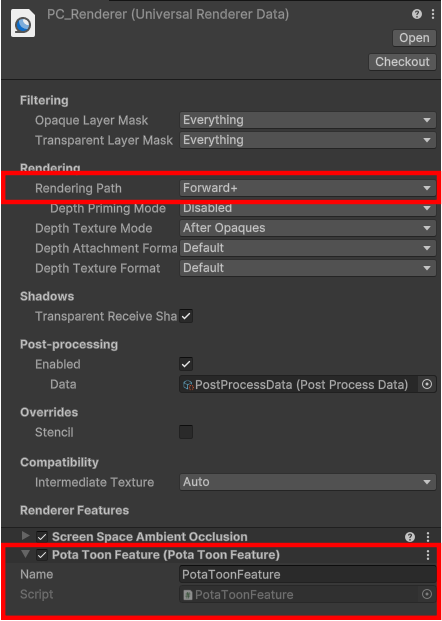
What is the Renderer Data Asset you are using?
- It usually has a name like
URP-HighFidelity-RendererorPC_Renderer. - You can find it in the Render Pipeline Asset linked in the Toolbar > Edit > Project Settings > Quality settings.
For more details, please refer to the
Manual Setupsetup section in the Getting Started documentation.
2. My character looks white / hazy.
Emission Color
In this case, the Emission Color is usually set to white. Please change the Emission Color to black.
Duplicate or Convert tools may also cause the cloned avatar to appear white. In such cases, please adjust the Emission Color as well.
Gamma Space
If the Color Space in Project Settings is set to Gamma, colors may appear overly bright. Change it to Linear.
3. The shadow edges look jagged.
When the character’s size differs significantly from the default cube or when the Mesh Bounds size is large, the shadow edges may appear jagged.
Please adjust the character’s size so that it does not differ significantly from the default cube (scale 1). (An ideal size is around 0.5m to 3m in Unity units.)
- Please refer to here for notes regarding Mesh Bounds.
4. My shadows don’t look clean.
When using Character Shadow, you may see stair-step patterns or streaks along the surface. This is not a bug — it is expected behavior by design.
Why does this happen?
PotaToon’s Character Shadow is a dedicated shadow map that targets only PotaToon characters. This allows it to render far more detailed shadows onto the mesh than regular shadows — but it also means the shape of the mesh surface shows up directly in the shadows.
A shadow map records depth (distance) information from the light’s point of view, then compares each pixel against it to decide whether it is in shadow. On low-poly meshes, the surface is faceted, so small depth errors occur when the surface is compared against itself — and these appear as stair-step artifacts (self-shadowing, also known as shadow acne).
How to fix it
A. Increase the mesh’s vertex density
This is the most fundamental solution. Smoothing the mesh (subdivision) to increase vertex density will remove the artifacts.
B. Adjust Depth Bias / Normal Bias
If modifying the mesh is not an option, adjust Depth Bias and Normal Bias in the material’s Character Shadow section.
Depth Bias: Pushes the depth comparison threshold back, removing shadows the surface casts onto itself.Normal Bias: Samples the shadow from a position slightly offset along the surface normal.
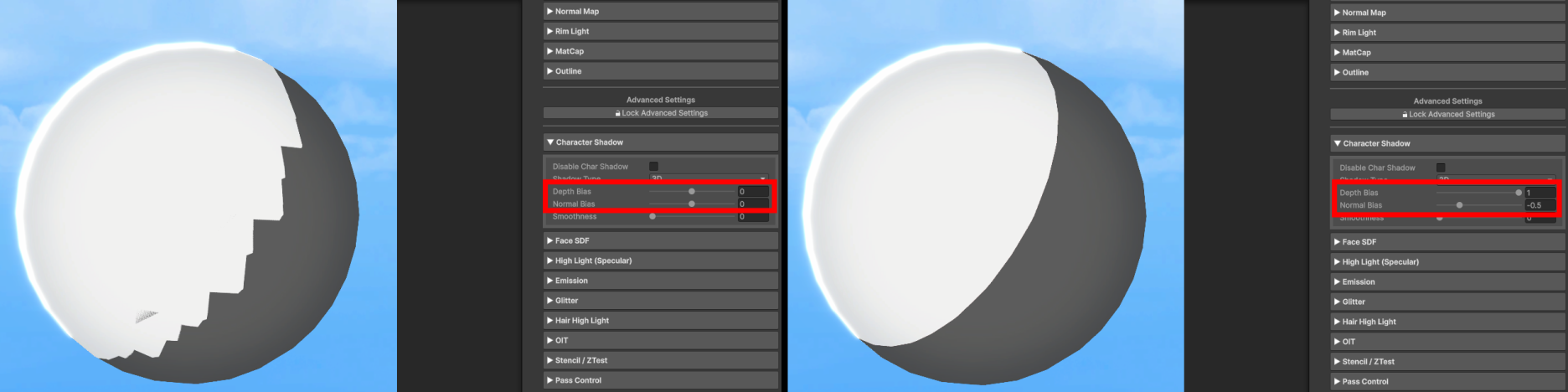
Left: Depth Bias 0 / Normal Bias 0 (stair-step artifacts) — Right: Depth Bias 1 / Normal Bias -0.5 (fixed)
These values can be adjusted per material, or applied globally to all characters via the PotaToon Volume settings.
If the bias values are too high, shadows may shift away from their actual position and appear detached from the object (Peter Panning), or small shadow details may disappear. Adjust gradually while checking the result.
5. My preset does not apply its settings.
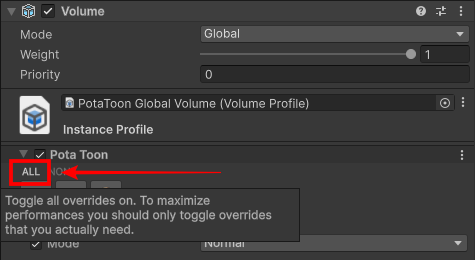
In this case, try again after you click the ‘All’ button in the volume settings.
6. (2021 LTS) Bloom is not rendered after build.
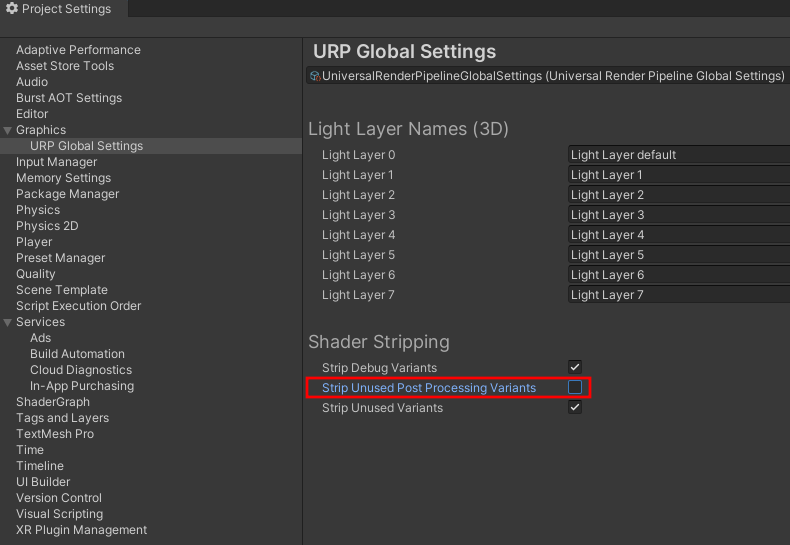
In 2021 LTS, Bloom may not be rendered due to Shader Stripping. In this case, use one of the following two options:
- Add the default URP Bloom to the Global Volume you are using, or
- Disable the
Strip Unused Post Processing Variantsoption in Project Settings > Graphics > URP Global Settings > Shader Stripping.