Material Settings
1. Feature Overview
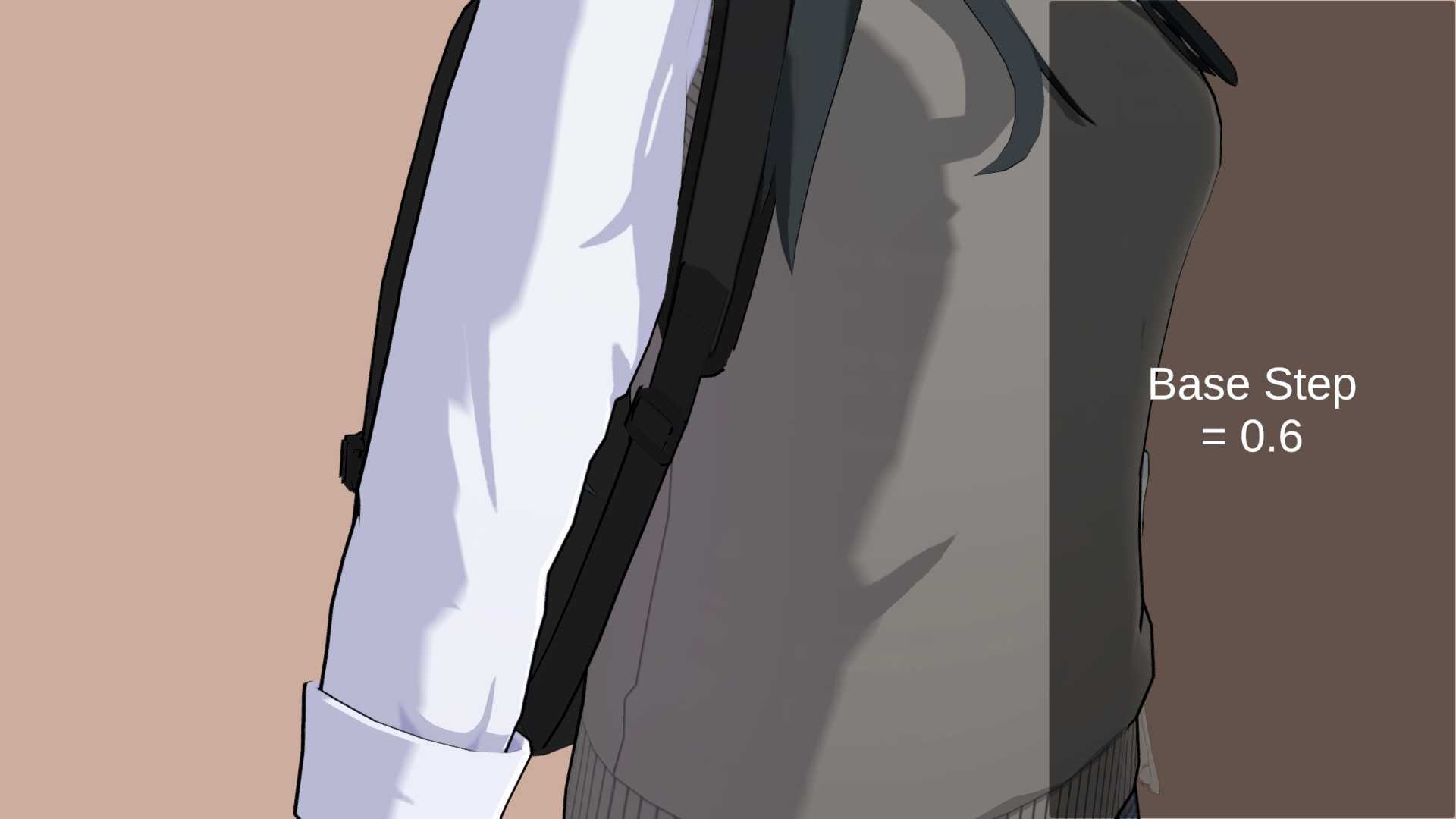
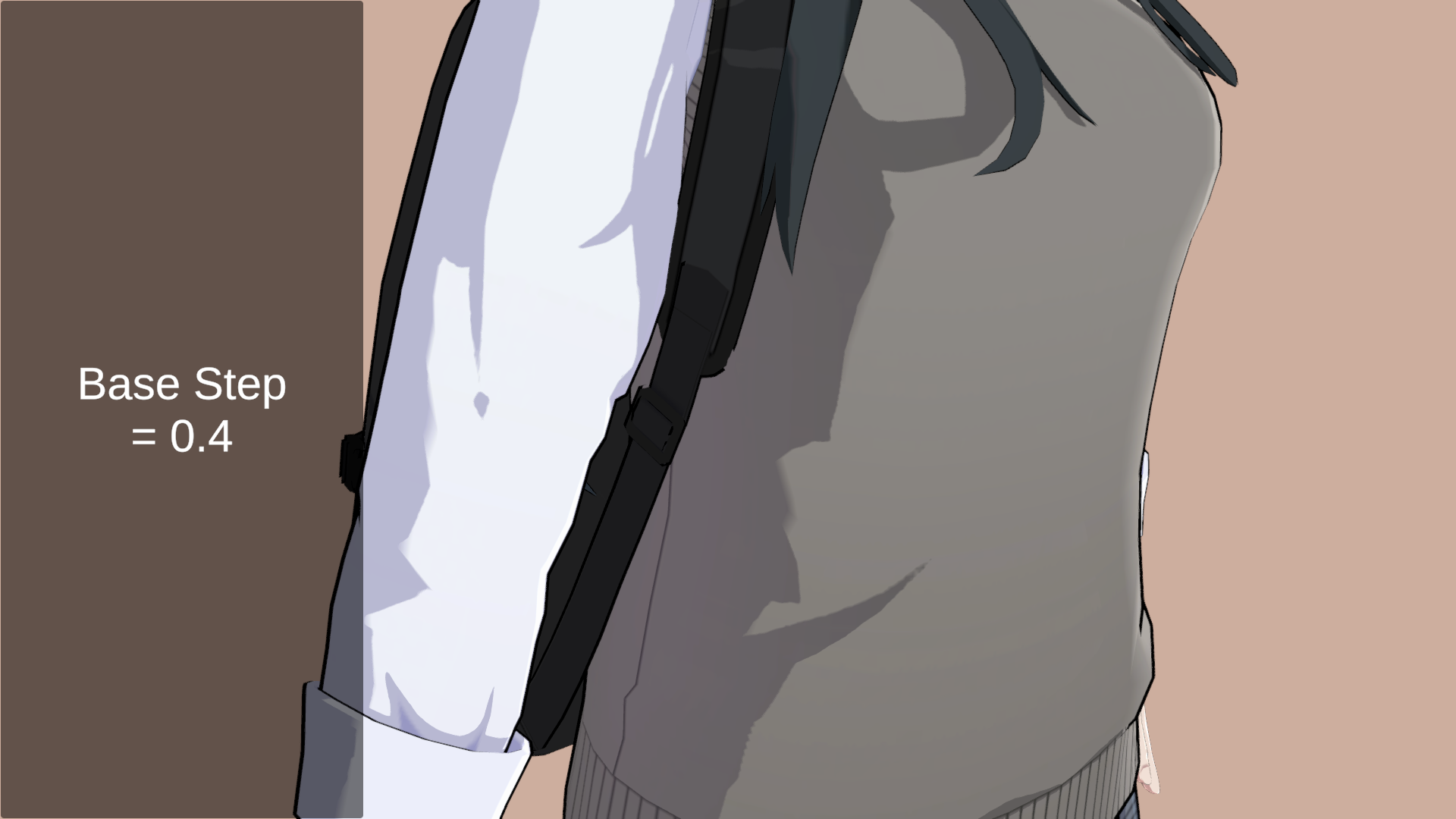
Base Step
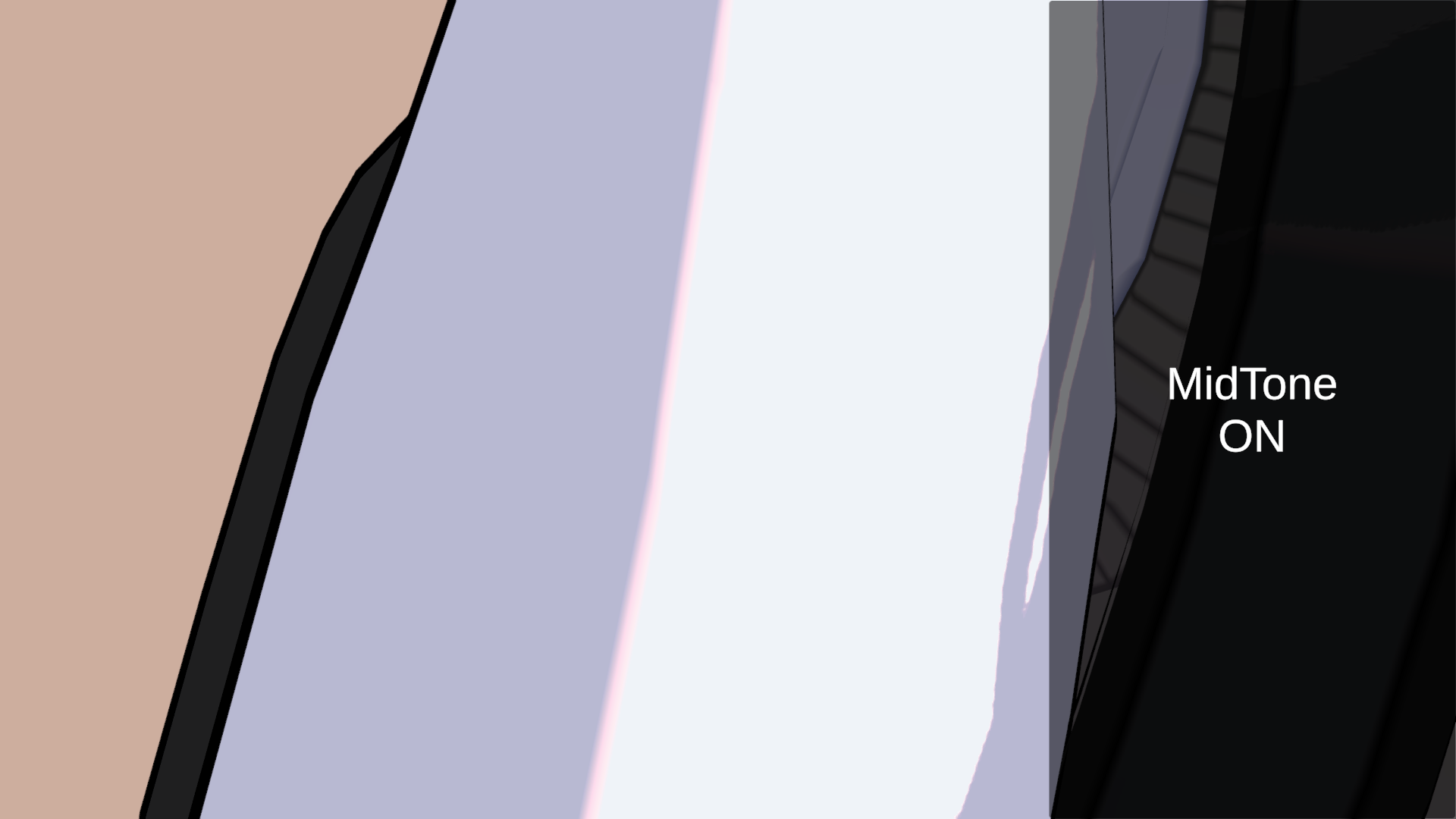
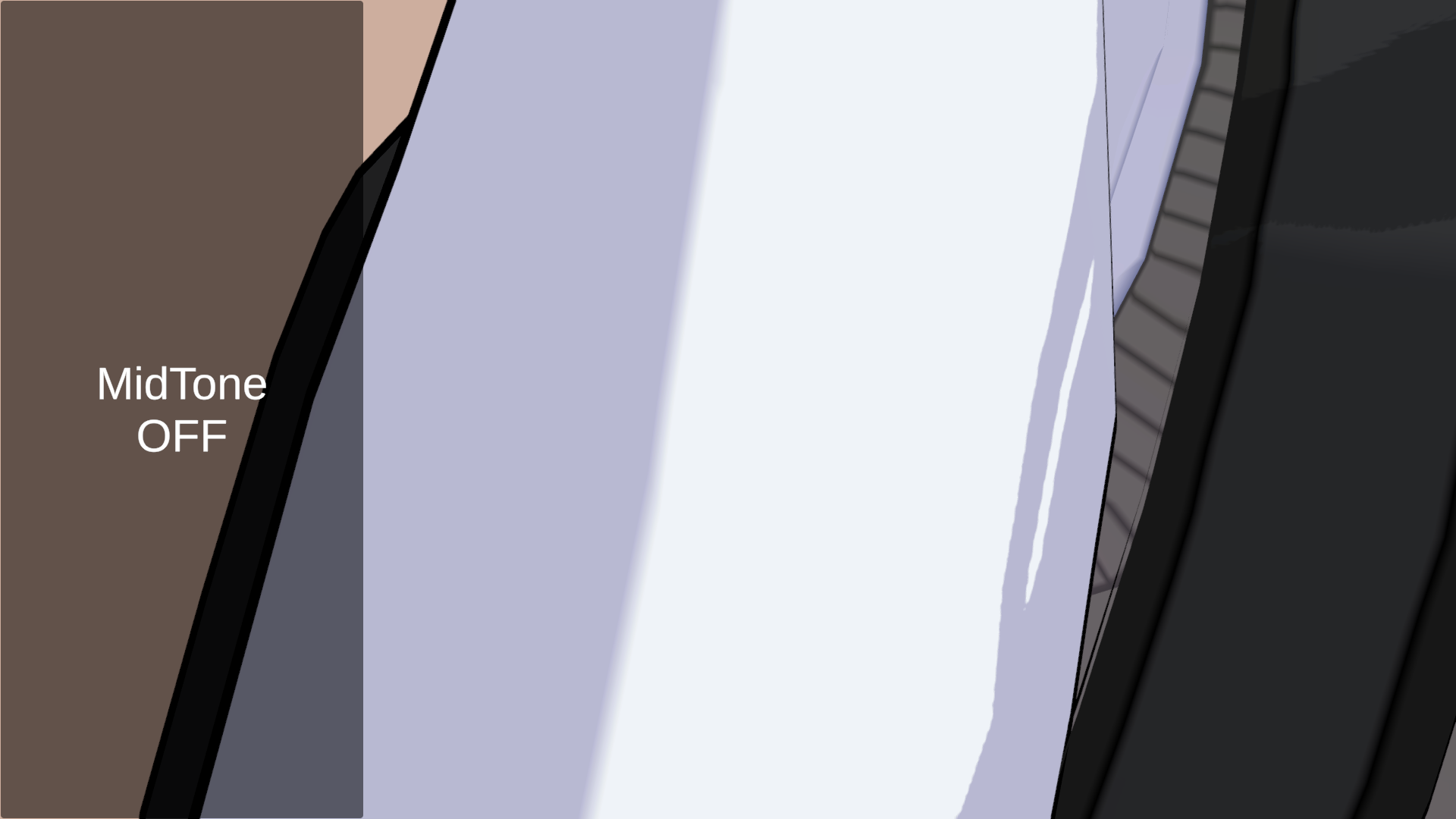
Mid Tone
Rim Light
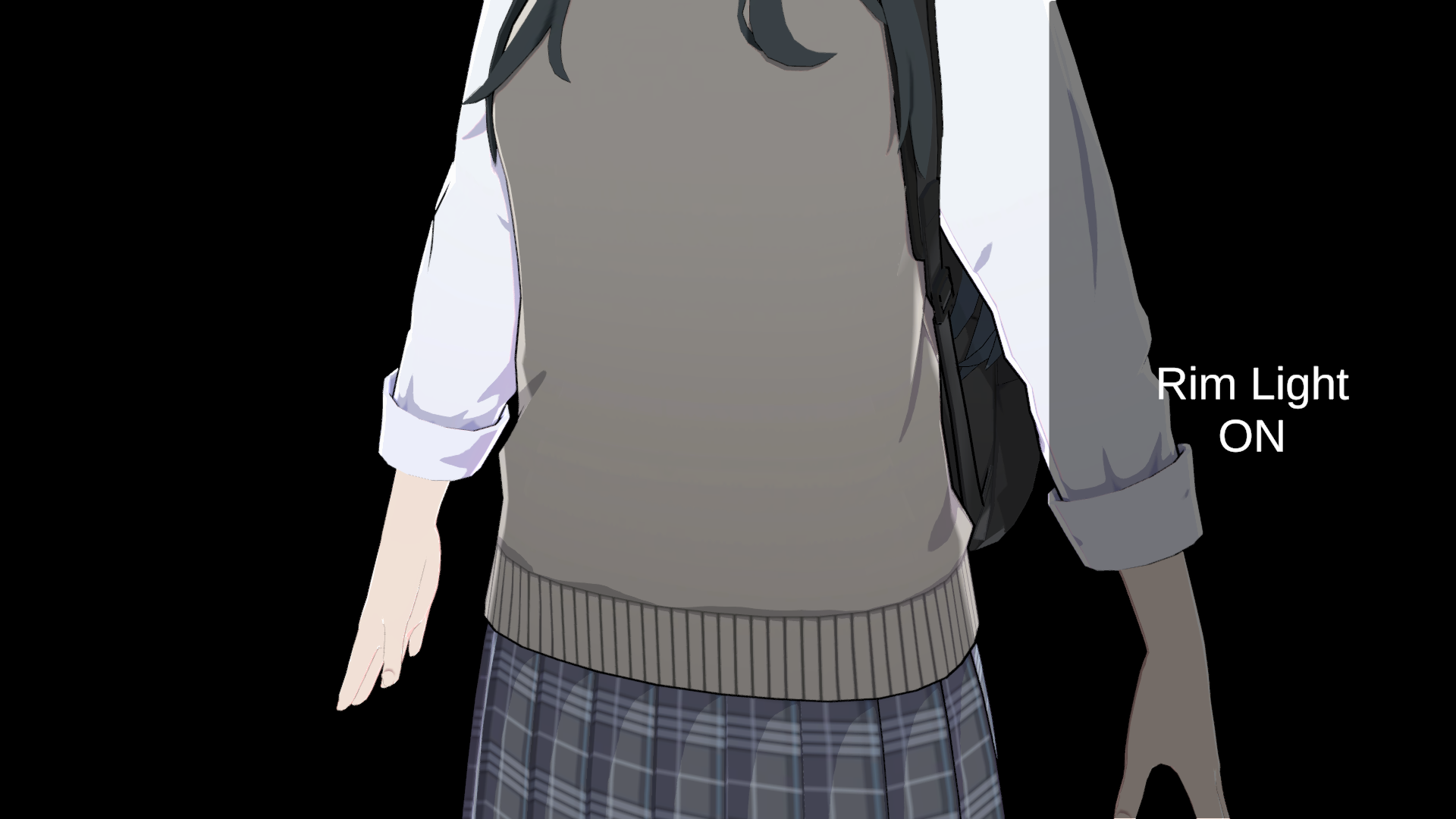
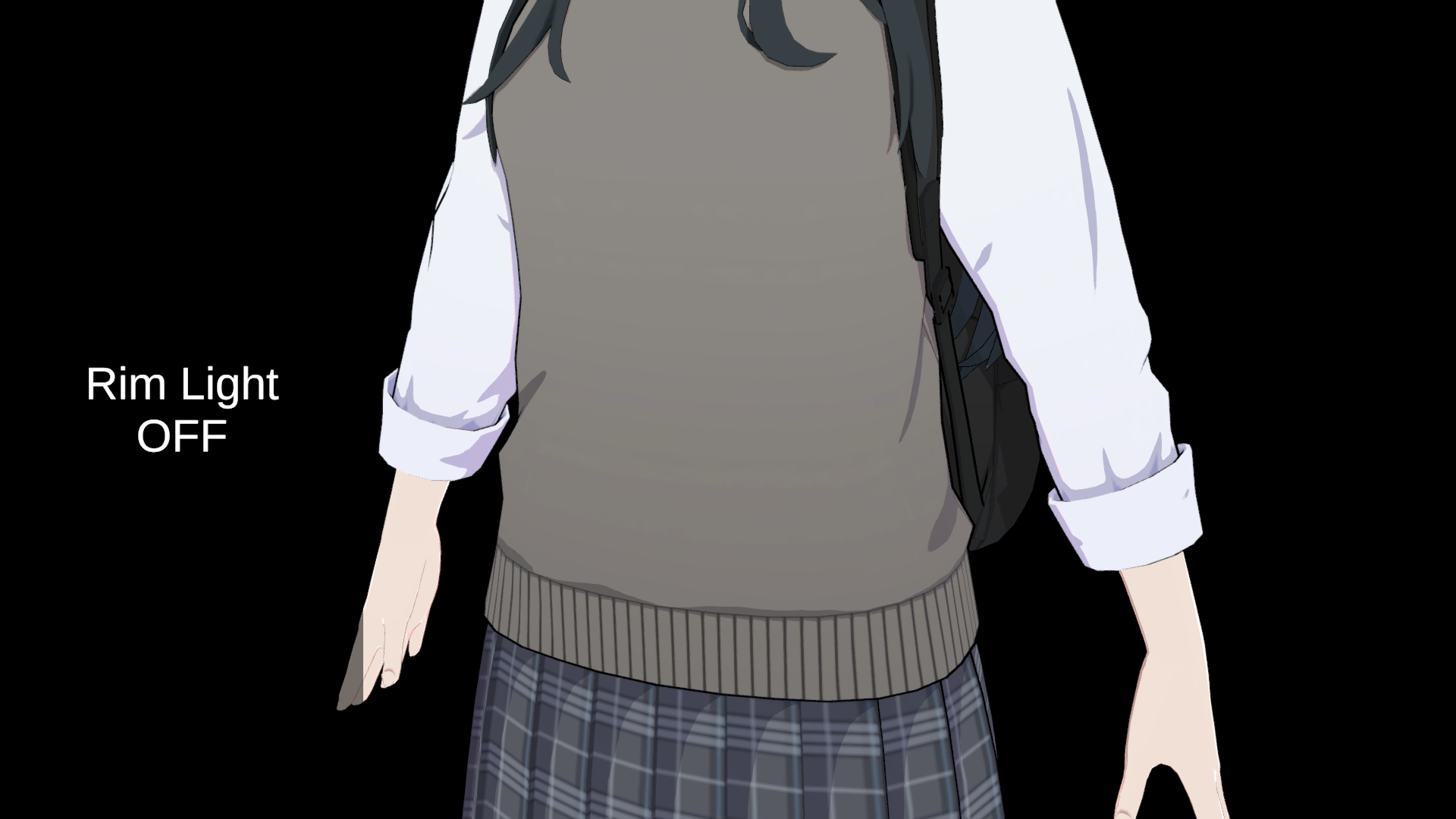
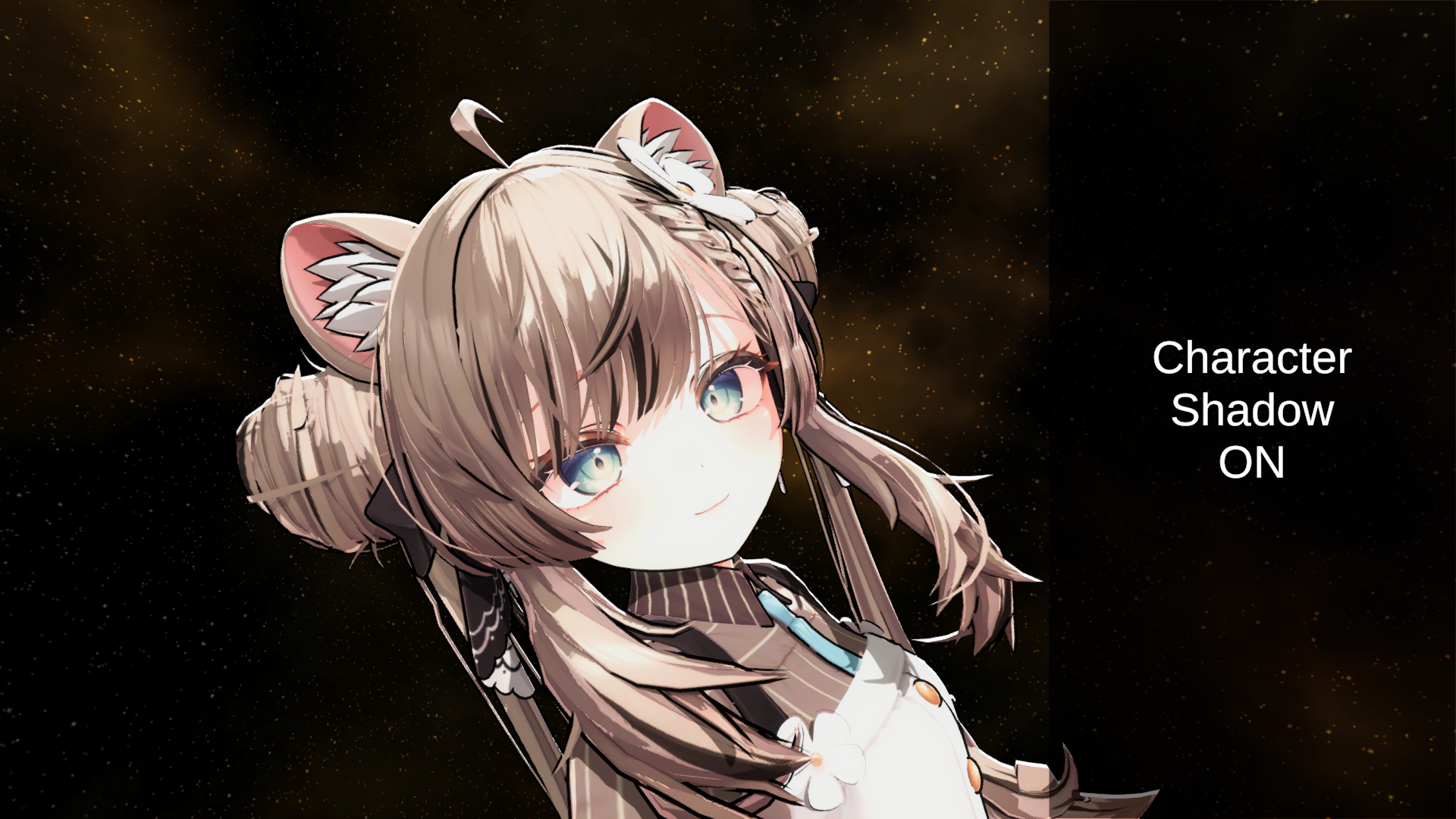
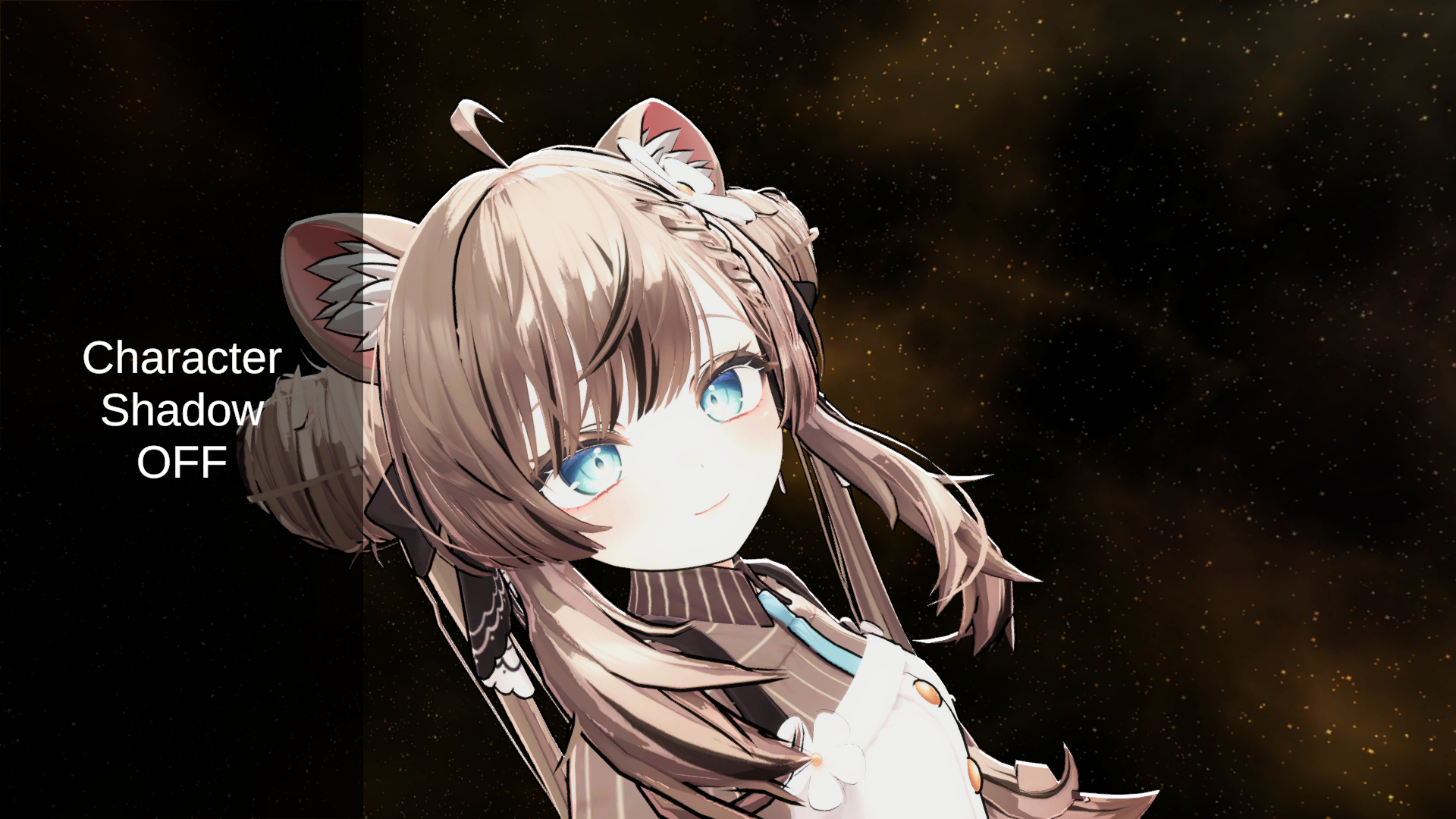
Character Shadow
Face SDF
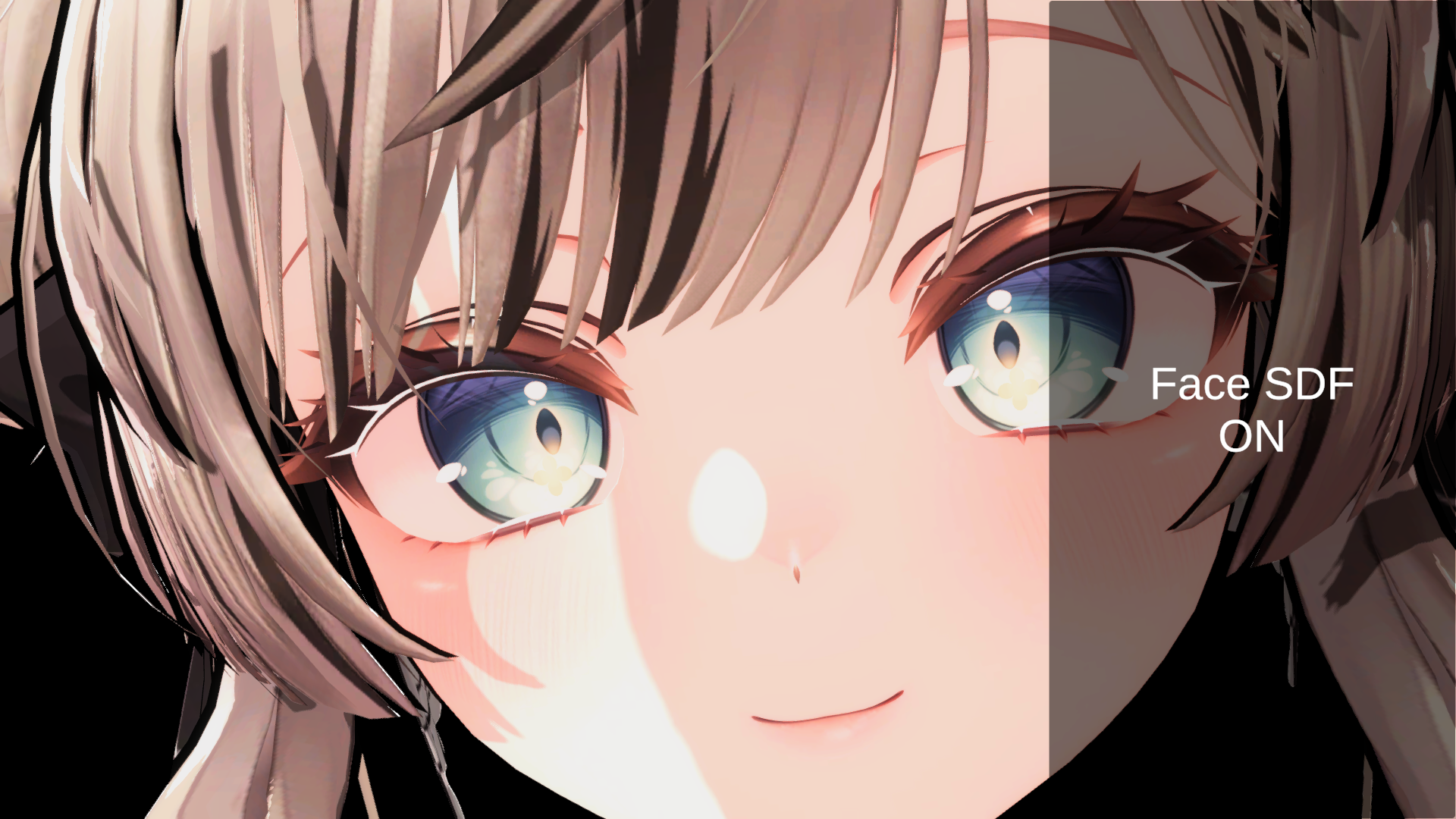
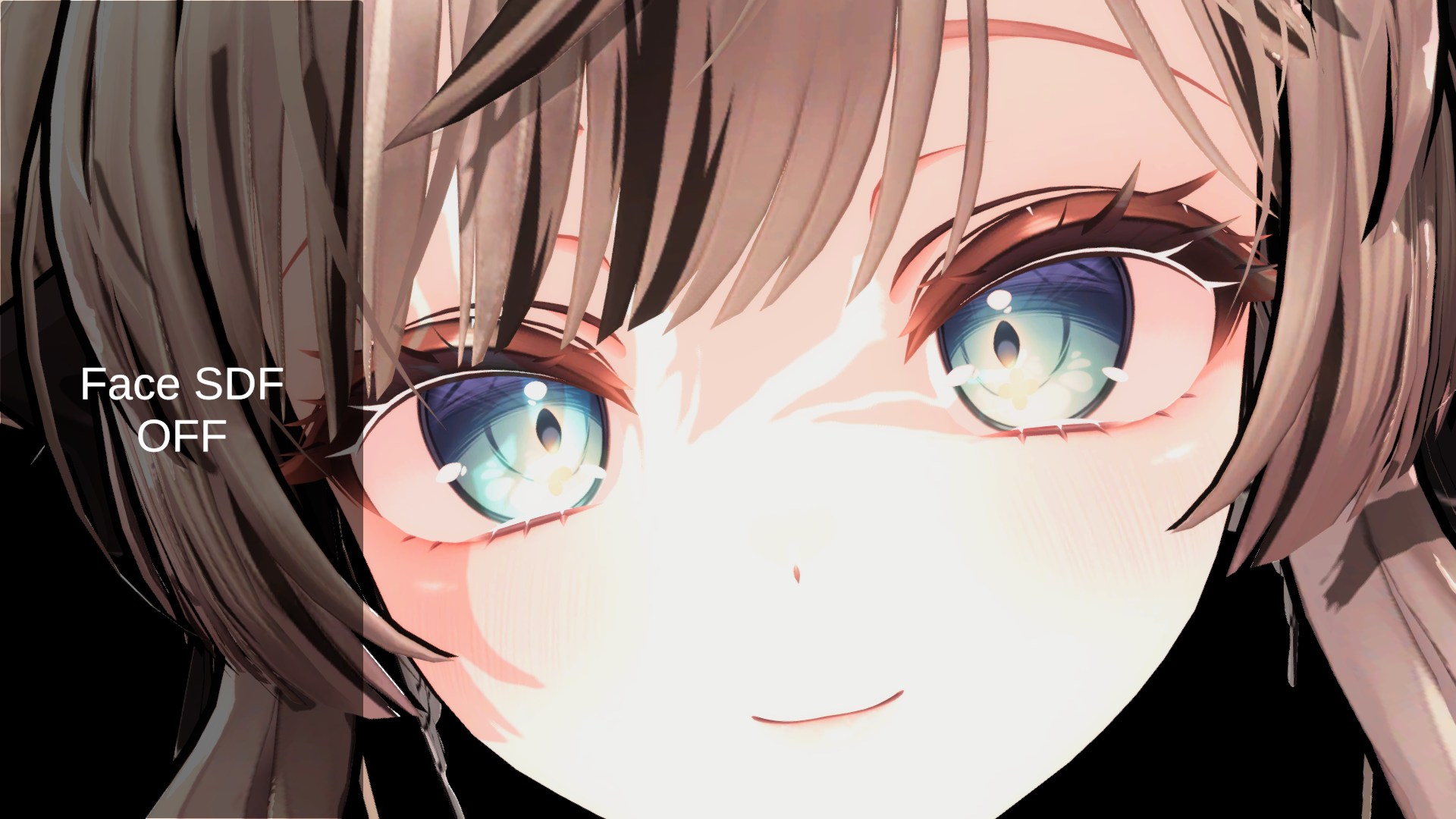
High Light
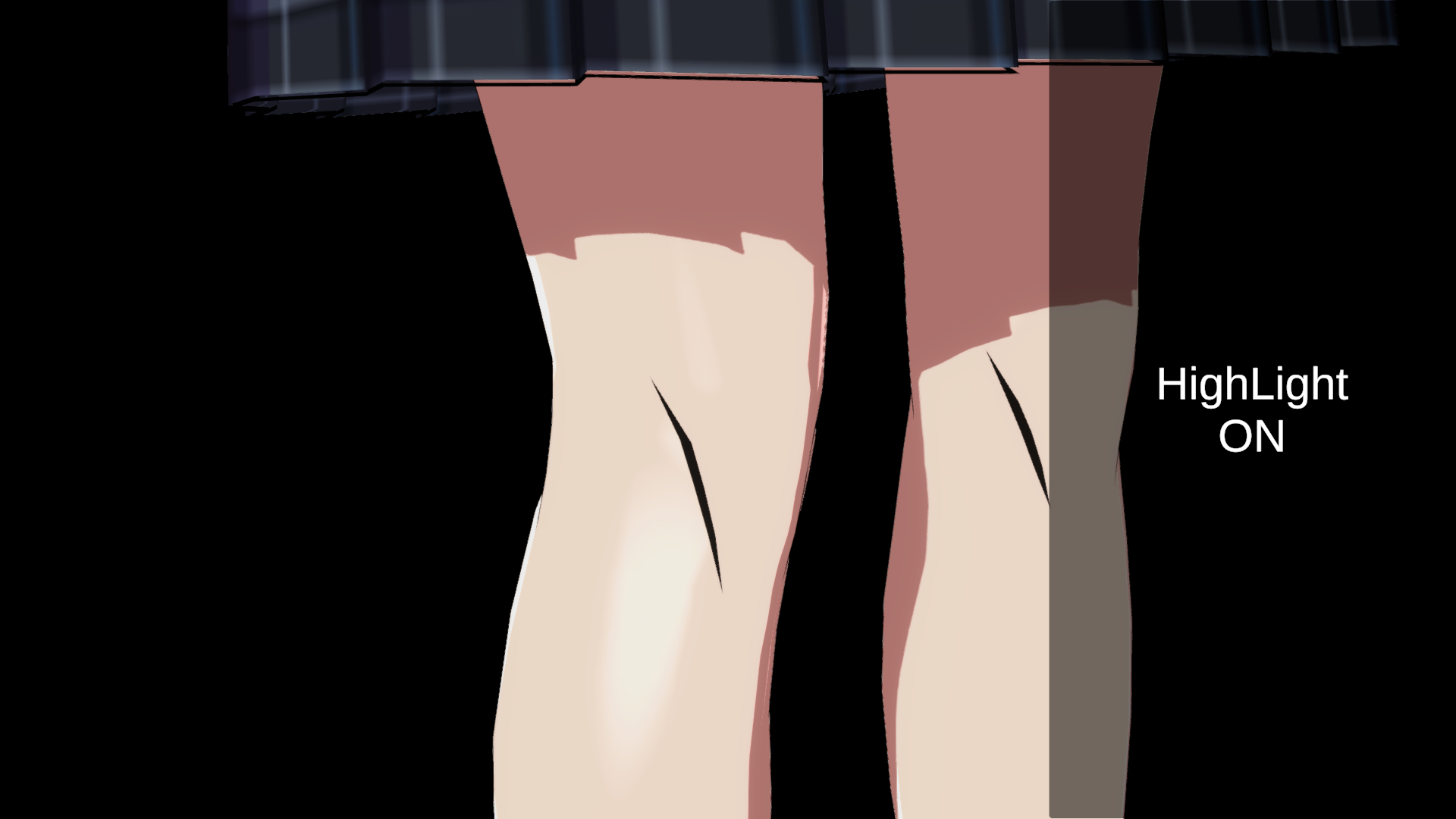
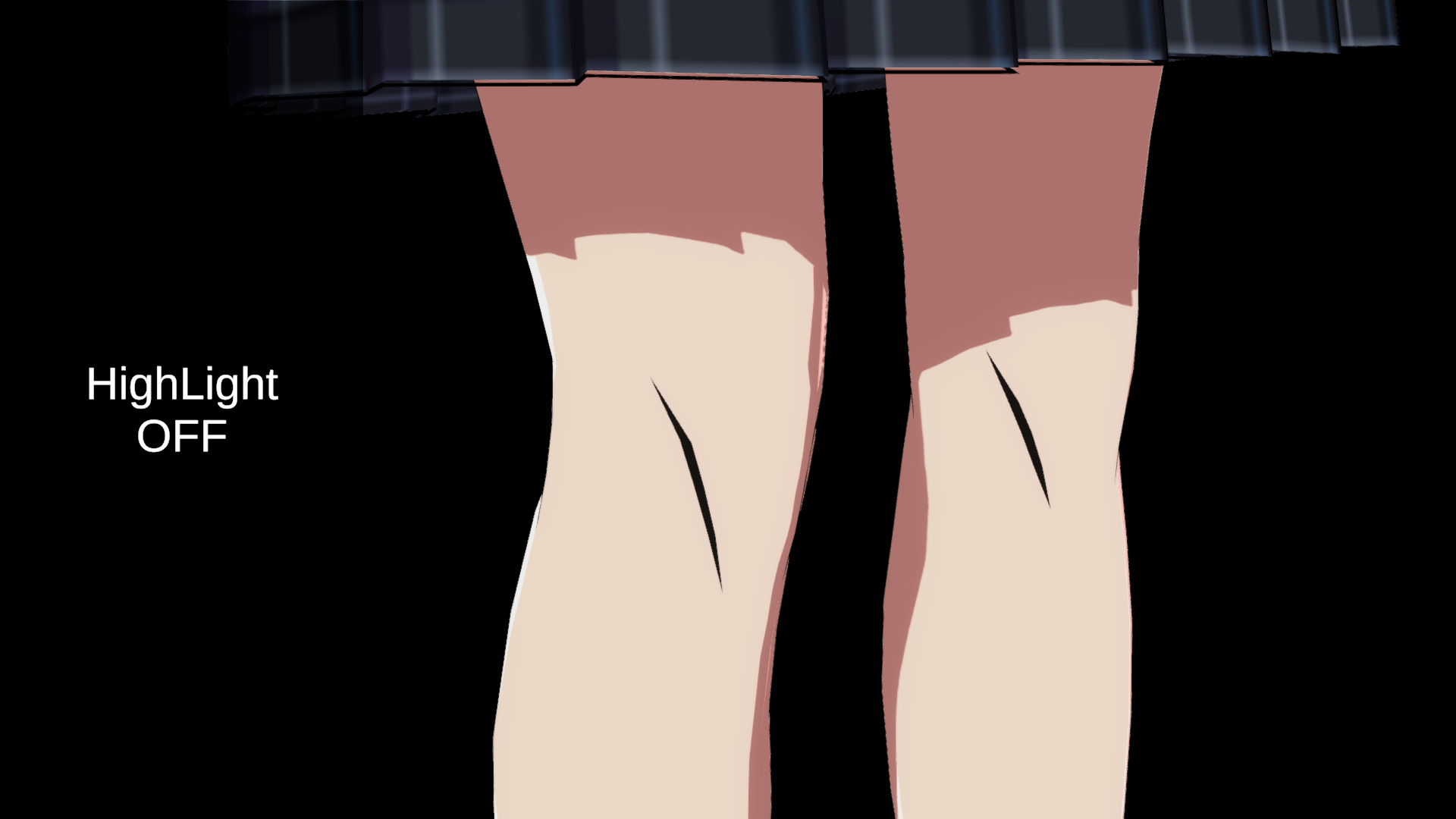
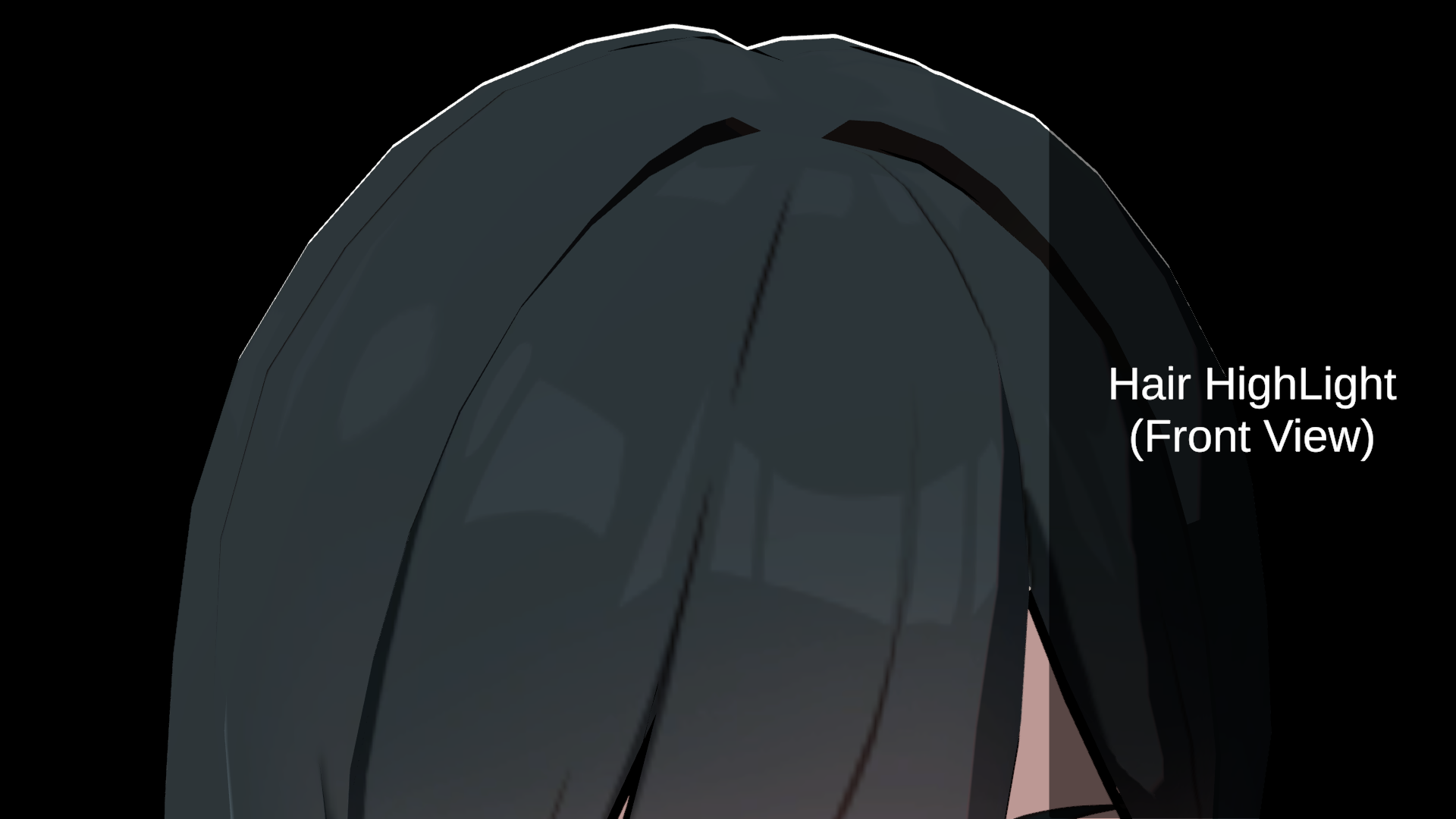
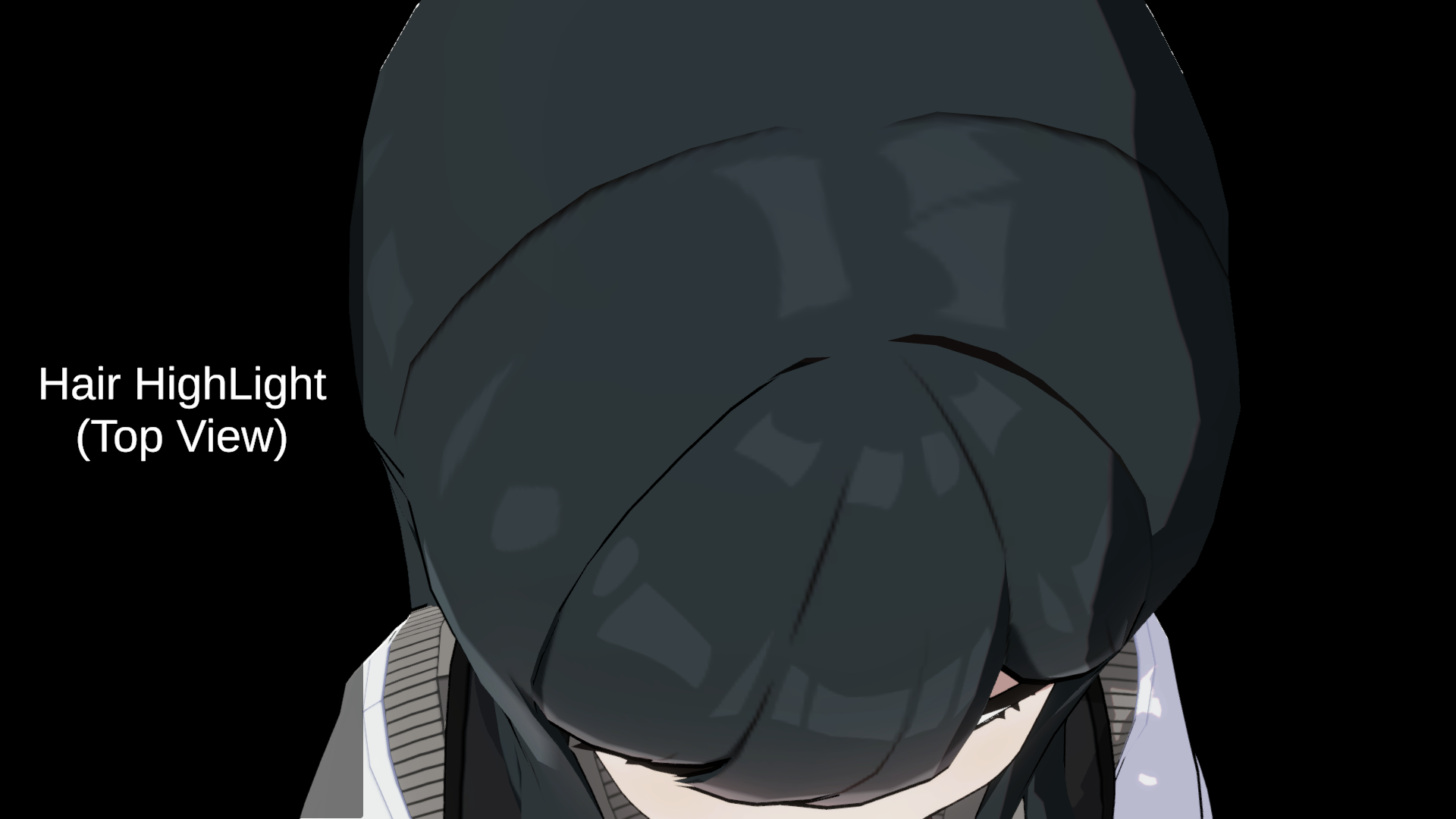
Hair High Light
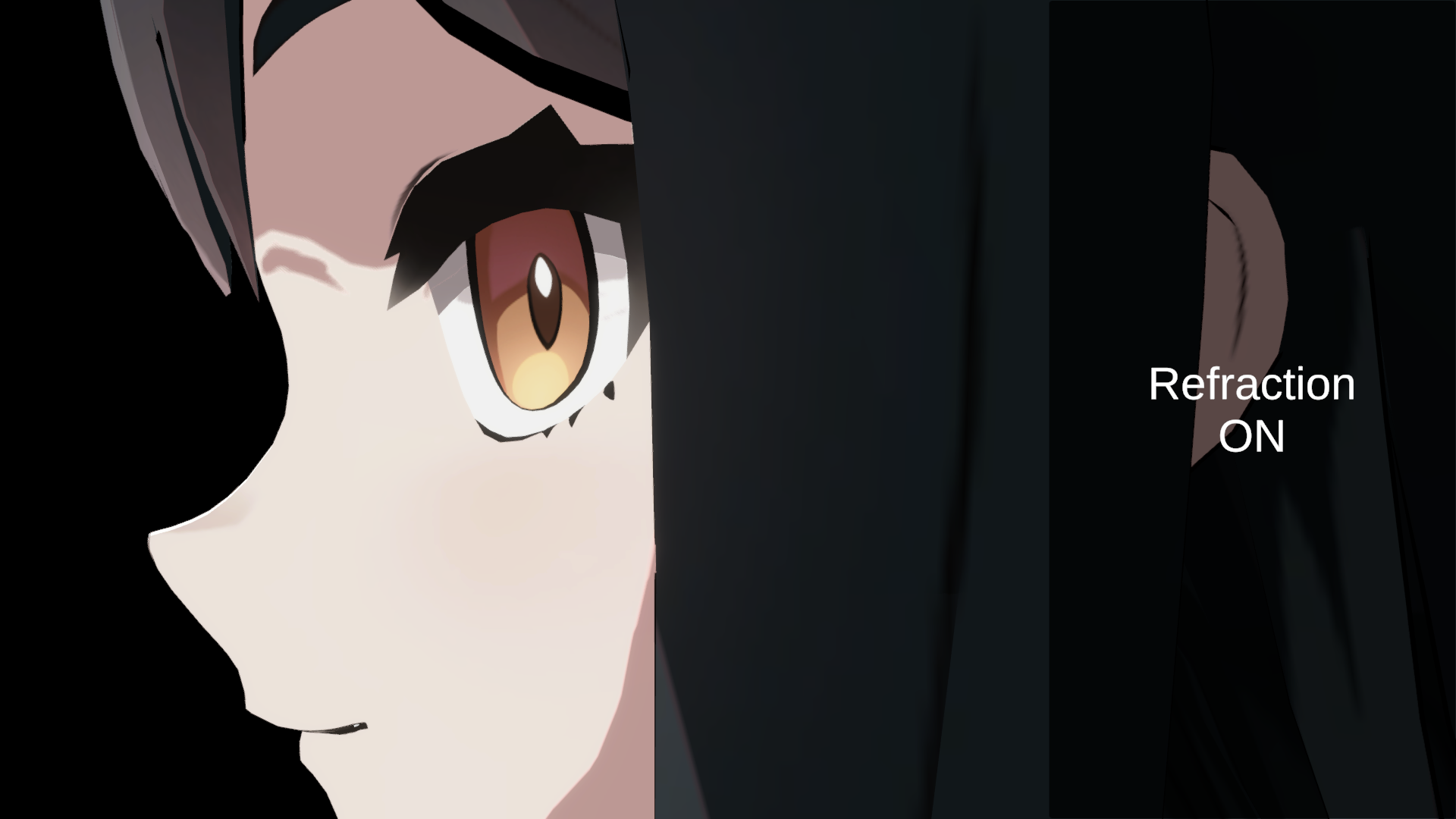
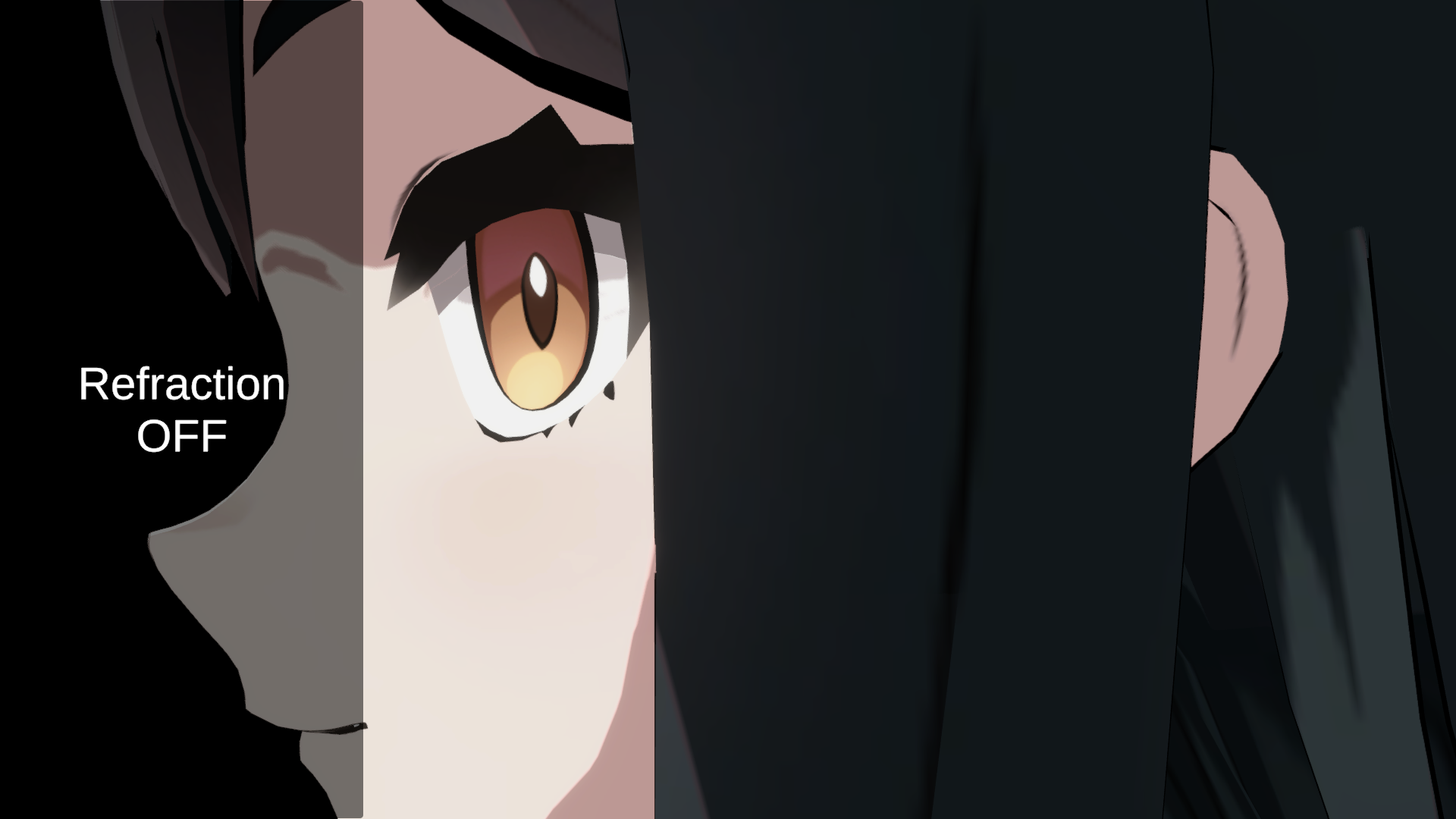
Refraction
Eye High Light

2. Setting Details
PotaToon materials are divided into four types: General, Face, Eye, and Gem.
- General: The default type, used for most parts of the character such as the body, clothing, and hair.
- Face: Recommended for facial surfaces and eyeballs to ensure proper shading and detail handling.
- Eye: Designed specifically for pupil-only meshes. If the eyeball and pupil are not separated into different submeshes or materials, use the Face type instead.
- Gem: Designed for crystal/glass style materials with transmission, refraction, and sparkle controls.
0. Global
| Name | Description |
|---|---|
| Performance Mode | Lightweight mode available for General / Face materials. When enabled, the material switches to PotaToon Simple Toon, keeping only the necessary features to reduce build and rendering cost. Use it for non-main NPCs, background objects, and other materials that do not need heavy detail. |
| Cull Mode | Selects which side of polygons is rendered. Back is usually recommended. |
| Surface Type | Selects the material rendering type. Available types are Opaque, Cutout, Refraction, and Transparent. |
| Auto Render Queue | Automatically sets Render Queue based on Surface Type and blending settings. Disable this if you need to edit Render Queue manually. |
1. General / Face
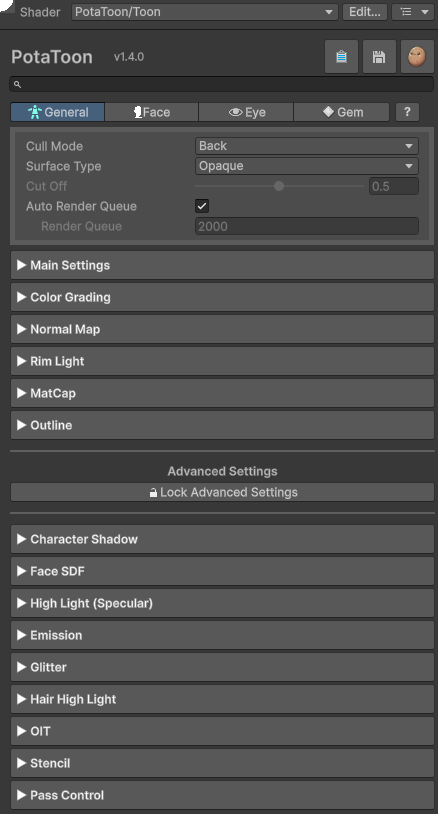
Main Settings
| Name | Description |
|---|---|
| Main Tex, Color | Defines the color of the lit areas. |
| Shade Tex, Color | Defines the color of the shadowed areas. |
| AO Map | Designates areas that should always remain dark. However, these areas will still receive light from spotlights or other light sources. |
| Shadow Mask | Excludes selected areas from shadowing using a mask texture (R channel). |
| Shadow Mask Reverse | Inverts Shadow Mask behavior (white excludes instead of black). |
| Base Step | Controls the shadow threshold. To ensure smooth blending with character self-shadowing, it’s recommended to keep this at 0.5 unless special adjustments are required. |
| Step Smoothness | Controls how soft the shadow edges are. |
| Receive Light Shadow | Toggles receiving the default light shadow from the brightest scene light. |
| MidTone | Toggles a mid-tone color for the shadow boundary generated by the main directional light. This mid-tone effect will disappear when lit by other light sources (e.g., spotlights). |
| MidTone Color | Sets the color used for the shadow boundary. |
| Midtone Thickness | Adjusts the thickness of the mid-tone shadow edge. |
| Indirect Dimmer | Adjusts the intensity of indirect lighting, which includes Light Map, Light Probe, Adaptive Probe Volume, Reflection Probe, and Skybox. |
| Vertex Color | Sets if vertex color is used. If enabled, the vertex color is combined with above textures and colors to calculate the final color. |
| Backlight Mode | Forces shadowed areas to render as pure black. Useful for dramatic lighting scenarios like backlighting for more artistic effects. |
Alpha Mask
| Name | Description |
|---|---|
| Mode | Selects how Alpha Mask affects the material. None hides the remaining Alpha Mask controls.• None: Disables Alpha Mask.• Clipping: Works the same way as the existing Clipping Mask. It clips unnecessary areas even when the Surface Type is Opaque instead of Cutout.• Replace: Replaces the alpha value with the mask value.• Multiply: Multiplies the alpha value by the mask value.• Add: Adds the mask value to the alpha value.• Subtract: Subtracts the mask value from the alpha value.• Note: the alpha value here means main texture alpha * color alpha. |
| Mask | Texture used by Alpha Mask. The selected channel is sampled. |
| Clipping Cutoff | Cutoff threshold used when Mode is Clipping. |
| Invert | Inverts the alpha mask influence. Available in alpha modes other than Clipping. |
| Transparency | Controls how strongly the mask changes transparency. Available in alpha modes other than Clipping. |
| Scale | Adjusts Alpha Mask strength/scale. Available in alpha modes other than Clipping. |
Alpha Mask alpha modes become visible on Cutout, Refraction, or Transparent surfaces. Opaque output remains opaque.
Color Grading
| Name | Description |
|---|---|
| Base Hue | Adjusts hue for lit/base color regions. |
| Base Saturation | Adjusts saturation for lit/base color regions. |
| Base Contrast | Adjusts contrast for lit/base color regions. |
| Shadow Hue | Adjusts hue for shadow/shade color regions. |
| Shadow Saturation | Adjusts saturation for shadow/shade color regions. |
| Shadow Contrast | Adjusts contrast for shadow/shade color regions. |
| Mask Map | Applies color grading only to selected areas (R channel). |
| Mask Map Reverse | Reverses Mask Map influence (black affected instead of white). |
Normal Map
| Name | Description |
|---|---|
| Use Normal Map | Enables the use of a normal map. This map affects all lighting, including MatCap and self-shadowing. |
| Normal Map | The normal map texture to be used. |
| Normal Map Tiling/Offset | Adjusts UV tiling and offset for the normal map texture. |
| Bump Scale | Controls the intensity of the normal map. |
Rim Light
| Name | Description |
|---|---|
| Rim Light Mask | Masks out areas where rim lighting should not be applied. (Screen-space rim light ignores this mask.) |
| Rim Light Color | Sets the rim light color. This is affected by scene lighting. (Screen-space rim light ignores light color.) |
| Power | Controls the spread of the rim light (based on Fresnel). |
| Smoothness | Controls the softness of the rim light edge. |
| [Screen Rim] Tint | Adds a per-material adjustment for the Screen Rim Light color. It is based on the color defined in the Volume settings. |
| [Screen Rim] Tint Mode | Sets whether to multiply or replace the Screen Rim Light color from the Volume settings. |
| [Screen Rim] Width Multiplier | Adds a per-material adjustment for the Screen Rim Light width. It uses the width in the Volume settings as the baseline. |
| [Screen Rim] Lighting Dimmer | Adjusts how strongly scene lighting affects the Screen Rim result. |
| [Screen Rim] Shadow Fade | Sets if the Screen Rim Light is attenuated by a shadow. |
MatCap
| Name | Description |
|---|---|
| MatCap Layers (1-8) | General/Face supports up to 8 MatCap layers with the same control set below. |
| Mode | Sets the blend mode for MatCap. Supports Add and Multiply. |
| UV | Selects the UV channel used for sampling the MatCap texture. |
| Weight | Controls the strength of MatCap effect. |
| Lighting Dimmer | Controls the intensity of lighting for MatCap. This is available only for Add mode. |
| MatCap Map | The texture used for the MatCap effect. |
| MatCap Mask | A mask texture defining where MatCap should be applied. |
Outline
| Name | Description |
|---|---|
| Mode | Normal: Use normal data to calculate outline. Position: Use object space position to calculate outline. |
| Use Normal Map | Sets whether to use outline-only normal map. |
| Normal Map | A normal map texture to use for calculating outline only. |
| Width Mask | A mask texture to control outline thickness per area. Outlines are based on mesh normals. |
| Blend Main Tex | Determines whether the outline color should blend with the main texture color. |
| Outline Color | Sets the color of the outline. |
| Outline Width | Controls the overall outline thickness. |
| Depth Offset | Sets a depth offset specifically for outline. Mainly used to hide unwanted outline areas. |
| Lighting Dimmer | Sets how much the outline is affected by lighting. When set to 0, it maintains a constant color even when darkened. |
Refraction
| Name | Description |
|---|---|
| Refraction Weight | Controls the intensity of the refraction. |
| Blur Step | Controls the intensity of the refraction blur. |
Character Shadow
| Name | Description |
|---|---|
| Disable Char Shadow | Toggles character self-shadowing. In some cases (e.g., bangs), disabling self-shadow can create a cleaner look. |
| Shadow Type | Sets the character shadow type. 3D: The default mode for most materials and it is physically correct. 2D Face: We recommend using this for face materials. Although it is not physically correct, it can be useful for cleaner face shadows. It also does not receive Transparent Shadow. |
| Depth Bias | Adjusts the depth bias used for self-shadow sampling. |
| Normal Bias | Adjusts the normal bias used for self-shadow sampling. |
| Smoothness | Controls the softness of self-shadow edges. |
| 2D Shadow Width | Controls the width of 2D face shadow. |
Face SDF
FaceSDF textures must be symmetrical around the center point. Check out here for more details.
From v1.0.2, we support Face SDF textures for lilToon, Poiyomi Toon as the default.
If you use a texture created for the previous versions(v1.0.0, v1.0.1), please enable the Reverse option.
| Name | Description |
|---|---|
| Use Face SDF | Enables the use of a special SDF shadow mask for the face. When enabled, shadows defined by Base Step are ignored. If the face normals are already modeled to match SDF-style shading, you may enable this even without a texture. |
| Debug Face SDF | Debug mode to visualize the lighting results or texture application range for Face SDF. This can help in verifying the effectiveness of the SDF shadow mask. |
| Reverse | Inverts the shadow result. |
| Face SDF Tex | The texture used as the face SDF shadow mask. |
| Face SDF Tex Tiling/Offset | Adjusts UV tiling and offset for the Face SDF texture. |
| Post Offset | Globally offsets the values of the texture. A value of 0 is ideal, but you can adjust it if the texture edges appear unnatural. |
| Blur Step | Controls the sampling interval for the texture. Higher values create softer edges but may deviate from the intended texture look. |
High Light
| Name | Description |
|---|---|
| High Light Tex UV | Selects the UV channel for sampling the highlight map and mask. |
| High Light Map, Color | The highlight texture and its tint color. |
| High Light Mask | A mask texture that defines highlight regions. |
| Power | Controls the size of the highlight area (similar to URP SimpleLit). |
| Smoothness | Adjusts how soft the highlight edges are. |
Emission
| Name | Description |
|---|---|
| Emission Tex UV | Selects the UV channel for sampling the emission map and mask. |
| Emission Map, Color | The texture and tint used for emission. |
| Emission Mask | Defines the areas where emission is applied using a mask texture. |
| Global Illumination | Selects which GI the emission is applied to. See the table below for each option. |
| Global Illumination | Description |
|---|---|
| None | Emission is not applied to GI. |
| Realtime | Applies emission to real-time GI (Enlighten, Surface Cache GI). Surface Cache GI is available in Unity 6.7 and newer. |
| Baked | Applies emission to baked GI (LightMap and Light Probe baked by the Progressive Lightmapper). |
| Realtime + Baked | Applies emission to both real-time and baked GI. |
Only the emission of Opaque / Cutout materials is applied to GI. If the Emission Color is black or its alpha is 0, the emission is not applied to GI.
Glitter
Glitter settings in PotaToon use the same feature set as lilToon’s Glitter. The table below is organized for documentation clarity, so wording/grouping may differ slightly from the inspector.
| Name | Description |
|---|---|
| Use Glitter | Toggles Glitter on/off for this material. |
| Color / Mask | Glitter texture, color tint, and UV input for glitter distribution. |
| Main Color Power | Controls how strongly base color influences glitter color. |
| Enable Lighting | Controls scene-light influence on glitter. |
| Backface Mask | Reduces glitter on back-facing surfaces. |
| Apply Transparency | Applies material transparency to glitter contribution. |
| Shadow Mask | Reduces glitter in shadowed regions. |
| Particle Size | Controls glitter particle size. |
| Scale Randomize | Adds size variation among particles. |
| Contrast | Contrast adjustment for glitter pattern. |
| Sensitivity | Sensitivity of glitter response. |
| Blink Speed | Controls blink/twinkle speed. |
| Angle Limit | Limits visible glitter by viewing/light angle. |
| Light Direction Strength | Controls directional light influence on glitter. |
| Color Randomness | Adds random color variation between particles. |
| Normal Strength | Controls how normal direction affects glitter response. |
| Post Contrast | Final contrast adjustment after glitter composition. |
Hair High Light
Hair highlights intensify when viewed from above and weaken when seen from the front or below. While hair highlights are usually not separated, applying this option can result in a more natural effect.
| Name | Description |
|---|---|
| Use Hair High Light | Toggles the use of hair-specific highlights. |
| High Light Tex | The texture used for hair highlights. |
| Reverse Tex | Inverts the highlight texture values (1 - value). |
| Strength | Adjusts the brightness of the hair highlight. |
| UV Offset | Applies a vertical (Y-axis) offset to the texture sampling if needed. |
Stencil / ZTest
| Name | Description |
|---|---|
| Comp | Stencil comparison function. |
| Ref | Stencil reference value. |
| Pass | Stencil operation when stencil/depth tests pass. |
| Fail | Stencil operation when stencil test fails. |
| ZFail | Stencil operation when stencil passes but depth test fails. |
| ZTest | Depth comparison rule for visible color passes. |
| ZWrite | Toggles depth writing for visible color passes. |
OIT
| Name | Description |
|---|---|
| Disable OIT | Ignores OIT for this material. Refraction/Transparent rendering falls back to non-OIT behavior. |
Pass Control
| Name | Description |
|---|---|
| Shadow Caster | Enables/disables regular scene shadow casting from this material. |
| Character Shadow | Enables/disables PotaToon character shadow depth pass from this material. |
| Transparent Shadow | Enables/disables transparent shadow pass from this material. |
| Character Area | Enables/disables character-area mask pass. Disabling excludes this material from character-only post processing and character shadow interaction. |
2. Eye
The Eye type uses a simplified rendering logic that omits shadow regions and self-shadow interactions, resulting in a cleaner and clearer appearance - ideal for stylized looks.
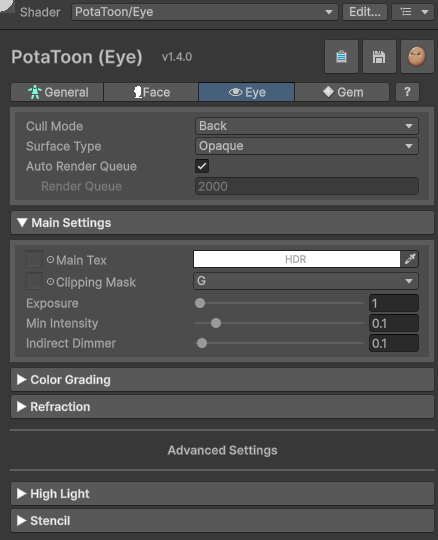
Main Settings
| Name | Description |
|---|---|
| Main Tex, Color | Sets the base texture and color. |
| Exposure | Adjusts additional exposure specifically for the iris/pupil area. |
| Min Intensity | Prevents the eye from becoming darker than the specified minimum brightness, unless all scene lights have zero intensity. |
| Indirect Dimmer | Controls the intensity of the indirect lighting. |
Alpha Mask
| Name | Description |
|---|---|
| Mode | Selects how Alpha Mask affects the Eye material. None hides the remaining Alpha Mask controls.• None: Disables Alpha Mask.• Clipping: Works the same way as the existing Clipping Mask. It clips unnecessary areas even when the Surface Type is Opaque instead of Cutout.• Replace: Replaces the alpha value with the mask value.• Multiply: Multiplies the alpha value by the mask value.• Add: Adds the mask value to the alpha value.• Subtract: Subtracts the mask value from the alpha value.• Note: the alpha value here means main texture alpha * color alpha. |
| Mask | Texture used by Alpha Mask. The selected channel is sampled. |
| Clipping Cutoff | Cutoff threshold used when Mode is Clipping. |
| Invert | Inverts the alpha mask influence. Available in alpha modes other than Clipping. |
| Transparency | Controls how strongly the mask changes transparency. Available in alpha modes other than Clipping. |
| Scale | Adjusts Alpha Mask strength/scale. Available in alpha modes other than Clipping. |
Color Grading
| Name | Description |
|---|---|
| Hue | Adjusts hue for the eye base color. |
| Saturation | Adjusts saturation for the eye base color. |
| Contrast | Adjusts contrast for the eye base color. |
Refraction
| Name | Description |
|---|---|
| Use Refraction | Enables eye refraction, which causes the pupils to shift naturally based on the viewer’s position. |
| Weight | Controls the strength of the eye refraction effect. |
High Light
Provides a special highlight effect for the eyes, simulating tear shine.
| Name | Description |
|---|---|
| Use High Light | Enables/disables eye highlight rendering. |
| Jitter | Adds subtle variation to highlight behavior. |
| Hi Tex, Color | Eye highlight texture and tint color. |
| Power R | Highlight shape power for the R channel. |
| Power G | Highlight shape power for the G channel. |
| Power B | Highlight shape power for the B channel. |
| Intensity R | Highlight intensity for the R channel. |
| Intensity G | Highlight intensity for the G channel. |
| Intensity B | Highlight intensity for the B channel. |
This feature requires a dedicated highlight texture and works similarly to the Hair Highlight system. For more details on how to create this effect, refer to the following video: https://youtu.be/T2iI9hbNqLI?si=ITff56W51M7v3Wmv&t=2017
Stencil / ZTest
| Name | Description |
|---|---|
| Comp | Stencil comparison function. |
| Ref | Stencil reference value. |
| Pass | Stencil operation when stencil/depth tests pass. |
| Fail | Stencil operation when stencil test fails. |
| ZFail | Stencil operation when stencil passes but depth test fails. |
| ZTest | Depth comparison rule for visible color passes. |
| ZWrite | Toggles depth writing for visible color passes. |
3. Gem
Gem is a dedicated shader type for crystal/glass-like materials with physically inspired controls such as refraction, transmission, clearcoat, and sparkle.
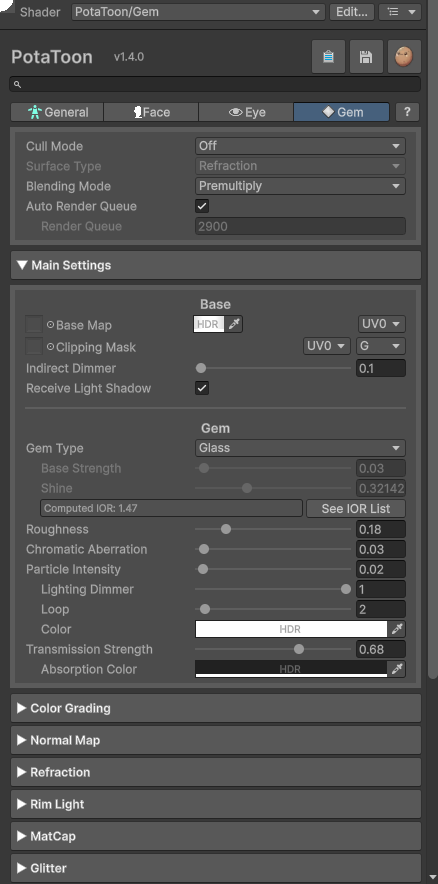
Main Settings
| Name | Description |
|---|---|
| Base Map, Color | Main gem color texture and tint. |
| Indirect Dimmer | Adjusts indirect lighting intensity. |
| Receive Light Shadow | Toggles receiving the default light shadow from the brightest scene light. |
| Gem Type | Preset selector (Glass, Crystal, Diamond, Ruby, Emerald, Sapphire, Opal, Custom). Non-Custom presets auto-apply tuned gem values. |
| Base Strength | Controls how strongly the gem body color appears. Editable when Gem Type = Custom. |
| Shine | Main reflection/sparkle intensity control. Editable when Gem Type = Custom. |
| Roughness | Surface roughness (lower = sharper reflections). |
| Chromatic Aberration | RGB split effect near edges. This is practically active only when optical effects like transmission/indirect/refraction are contributing. |
| Particle Intensity | Internal sparkle particle intensity. |
| Particle Lighting Dimmer | Lighting influence on sparkle particles. Active when Particle Intensity > 0. |
| Particle Loop | Sparkle density/loop pattern control. Active when Particle Intensity > 0. |
| Particle Color | Sparkle tint color. Active when Particle Intensity > 0. |
| Transmission Strength | Controls how much light passes through the gem. |
| Absorption Color | Internal absorption color for transmitted light. Active when Transmission Strength > 0. |
Alpha Mask
| Name | Description |
|---|---|
| Mode | Selects how Alpha Mask affects the Gem material. None hides the remaining Alpha Mask controls.• None: Disables Alpha Mask.• Clipping: Works the same way as the existing Clipping Mask. It clips unnecessary areas even when the Surface Type is Opaque instead of Cutout.• Replace: Replaces the alpha value with the mask value.• Multiply: Multiplies the alpha value by the mask value.• Add: Adds the mask value to the alpha value.• Subtract: Subtracts the mask value from the alpha value.• Note: the alpha value here means main texture alpha * color alpha. |
| Mask | Texture used by Alpha Mask. The selected channel is sampled. |
| Clipping Cutoff | Cutoff threshold used when Mode is Clipping. |
| Invert | Inverts the alpha mask influence. Available in alpha modes other than Clipping. |
| Transparency | Controls how strongly the mask changes transparency. Available in alpha modes other than Clipping. |
| Scale | Adjusts Alpha Mask strength/scale. Available in alpha modes other than Clipping. |
Color Grading
| Name | Description |
|---|---|
| Hue | Adjusts hue for the gem base color. |
| Saturation | Adjusts saturation for the gem base color. |
| Contrast | Adjusts contrast for the gem base color. |
Normal Map
| Name | Description |
|---|---|
| Use Normal Map | Toggles the use of a normal map for gem surface detail. |
| Normal Map | Normal map texture and UV input. Active when Use Normal Map is on. |
| Normal Map Tiling/Offset | Adjusts UV tiling and offset for the normal map texture. Active when Use Normal Map is on. |
| Bump Scale | Strength of the normal map effect. Active when Use Normal Map is on. |
Refraction
| Name | Description |
|---|---|
| Refraction Strength | Distortion strength of background seen through gem. |
| Refraction Blur Weight | Softens refracted background color. Active when Refraction Strength != 0. |
| Refraction Fresnel Power | Moves refraction emphasis toward edges. Active when Refraction Strength != 0. |
Glitter
Glitter settings in PotaToon use the same feature set as lilToon’s Glitter.
For Gem materials, this section is the same as the General / Face Glitter settings.
Rim Light
| Name | Description |
|---|---|
| Use Rim | Toggles rim lighting for Gem. |
| Mask | Masks out areas where rim lighting should not be applied. |
| Color | Sets the rim light color. |
| Power | Controls the spread of the rim light (based on Fresnel). |
| Smoothness | Controls the softness of the rim light edge. |
| [Screen Rim] Tint | Per-material tint adjustment for Screen Rim color. |
| [Screen Rim] Tint Mode | Sets whether to multiply or replace Screen Rim color from Volume settings. |
| [Screen Rim] Width Multiplier | Per-material adjustment for Screen Rim width. |
| [Screen Rim] Lighting Dimmer | Adjusts how strongly scene lighting affects the Screen Rim result. |
| [Screen Rim] Shadow Fade | Sets if the Screen Rim Light is attenuated by a shadow. |
MatCap
| Name | Description |
|---|---|
| MatCap Layers (1-4) | Gem supports up to 4 MatCap layers with the same control set below. |
| Mode | Sets the blend mode for MatCap. Supports Add and Multiply. |
| UV | Selects the UV channel used for sampling the MatCap texture. |
| Weight | Controls the strength of MatCap effect. |
| Lighting Dimmer | Controls the intensity of lighting for MatCap. This is available only for Add mode. |
| MatCap Map | The texture used for the MatCap effect. |
| MatCap Mask | A mask texture defining where MatCap should be applied. |
Clearcoat
| Name | Description |
|---|---|
| Clearcoat Intensity | Adds glossy top-coat contribution. |
| Clearcoat Roughness | Sharpness/softness of top-coat highlight. Active when Clearcoat Intensity > 0. |
Character Shadow
| Name | Description |
|---|---|
| Disable Char Shadow | Toggles character self-shadowing for this material. |
| Smoothness | Controls self-shadow edge softness. Active when Disable Char Shadow is off. |
OIT
| Name | Description |
|---|---|
| Disable OIT | Ignores OIT for this material. Refraction/Transparent rendering falls back to non-OIT behavior. |
Stencil / ZTest
| Name | Description |
|---|---|
| Comp | Stencil comparison function. |
| Ref | Stencil reference value. |
| Pass | Stencil operation when stencil/depth tests pass. |
| Fail | Stencil operation when stencil test fails. |
| ZFail | Stencil operation when stencil passes but depth test fails. |
| ZTest | Depth comparison rule for visible color passes. |
| ZWrite | Toggles depth writing for visible color passes. |
Pass Control
| Name | Description |
|---|---|
| Transparent Shadow | Enables/disables transparent shadow pass for this material. |